
Tidy up your WordPress themes to help speed up your website and make it more secure.
A WordPress theme is a group of files that work together to create the design and layout of your website. It helps you change things like how content appears on a page, as well as the fonts and colours you use.
As you went about building your website, I’m guessing you tried out a few themes for size, until you found one that worked. But what about the ones that didn’t? More than likely, they’re still installed on your site, taking up disk space and potentially slowing it down.
I’ll also assume that these discarded WordPress themes need updating!
It’s time to tidy things up and delete any WordPress themes that you aren’t using.
A step-by-step guide to deleting unused WordPress themes
- Log-in to the back end of your website.
- Select Appearance > Themes from the left-hand menu. Your active theme will be highlighted.
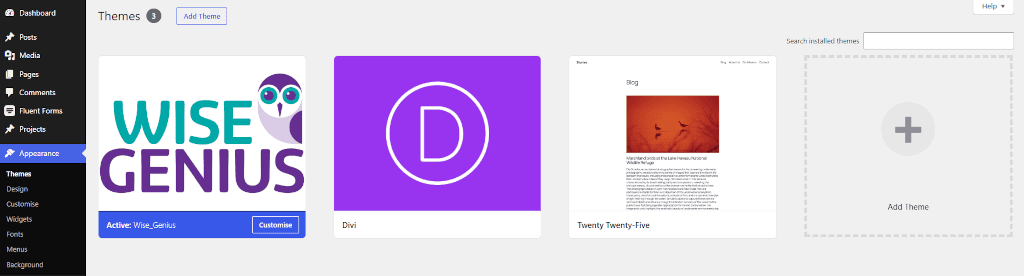
- Check whether your active theme is a child theme – hover over the image and click Theme Details. If it says, “This is a child theme of [theme name]“, you need to keep this parent theme too.
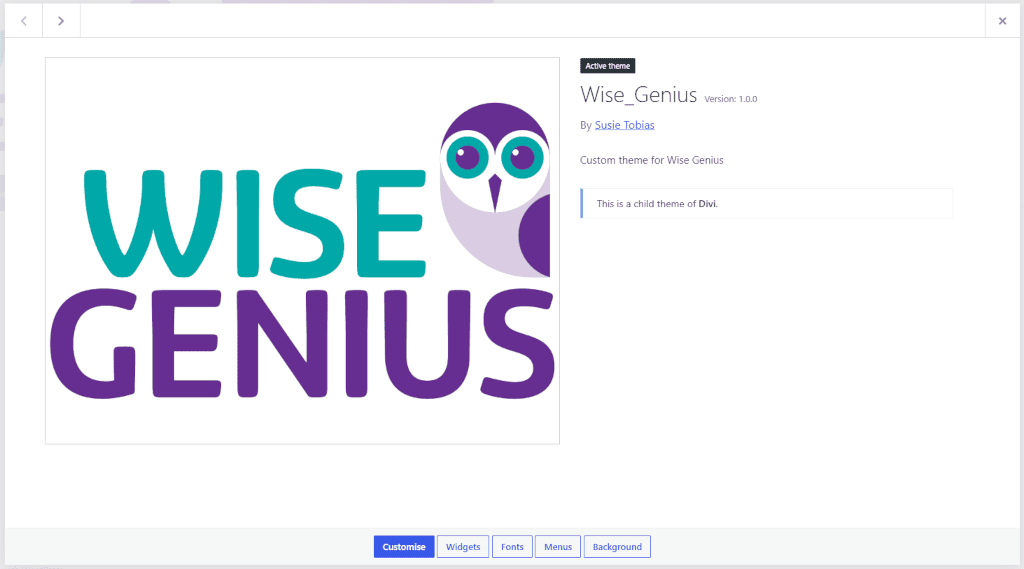
- Anything else can go. Hover over each theme image and click Theme Details.
- Click the red Delete text at the bottom.
And you’re good to go!
Bonus tip
WordPress advise leaving a default WordPress theme, such as Twenty Twenty-Five installed. If you ever experience issues with a third-party theme, this gives you a fallback.
If you would like help tidying up your WordPress website, check out WordPress Sorted, for all those website-related jobs you keep putting off.